

Product request
You are looking for a solution:

Select an option, and we will develop the best offer
for you


One Service Across Screens: An Overview of Ministra PRO’s Mobile and TV Interfaces
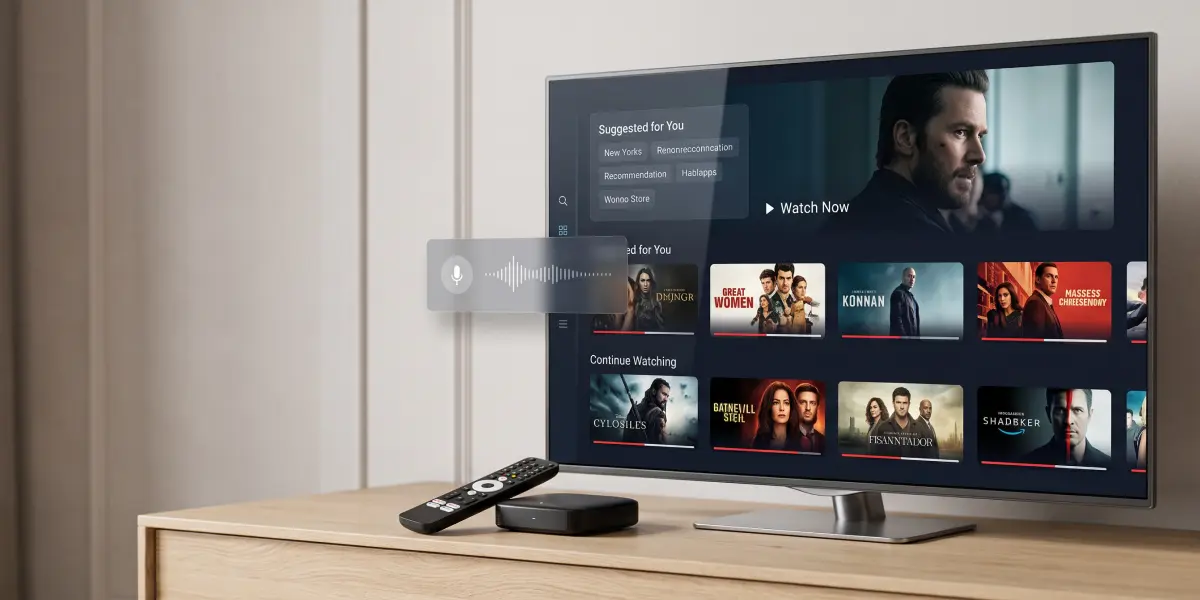
A modern IPTV/OTT service is rarely limited to a single device. A user may watch a TV channel on a large screen at home, open a video catalog on a smartphone, or continue interacting with the service on another supported device. The content and account remain part of the same system, but the interaction scenario changes with the screen.
This is why multiplatform support is not about placing exactly the same interface on a TV and a smartphone. A big screen assumes remote-control navigation from a distance, while mobile interaction is based on direct touch, scrolling, and a more compact presentation of information. The IPTV user interface must preserve a recognizable service structure while making interaction feel natural on each specific device.
Ministra PRO supports apps for iOS, tvOS, Android mobile, Android TV, AOSP, Fire TV Stick, Roku, Samsung Tizen, LG webOS, MAG Linux STBs, and MAG PRO, as well as a web player for browser-based viewing. This enables operators to develop a single IPTV/OTT service across multiple types of client devices.
One Service — Different Interaction Scenarios
A TV and a smartphone may provide access to the same content categories, but their interface requirements are different.
When using a TV, the viewer is usually several meters away from the screen and controls the application with remote-control buttons. This makes large interface elements, a clearly visible selected state, and predictable focus movement between cards, menus, and the TV guide especially important.
On a smartphone, the user is directly in front of the screen and interacts with it by touch. Scrolling, switching between tabs, vertical lists, and a more compact arrangement of interface elements are natural in this environment.
The difference is not only in screen size; the interaction model itself changes. A well-designed multiplatform service with an IPTV multiscreen interface should therefore preserve clear sections and a consistent visual logic while adapting navigation and information density to each device.
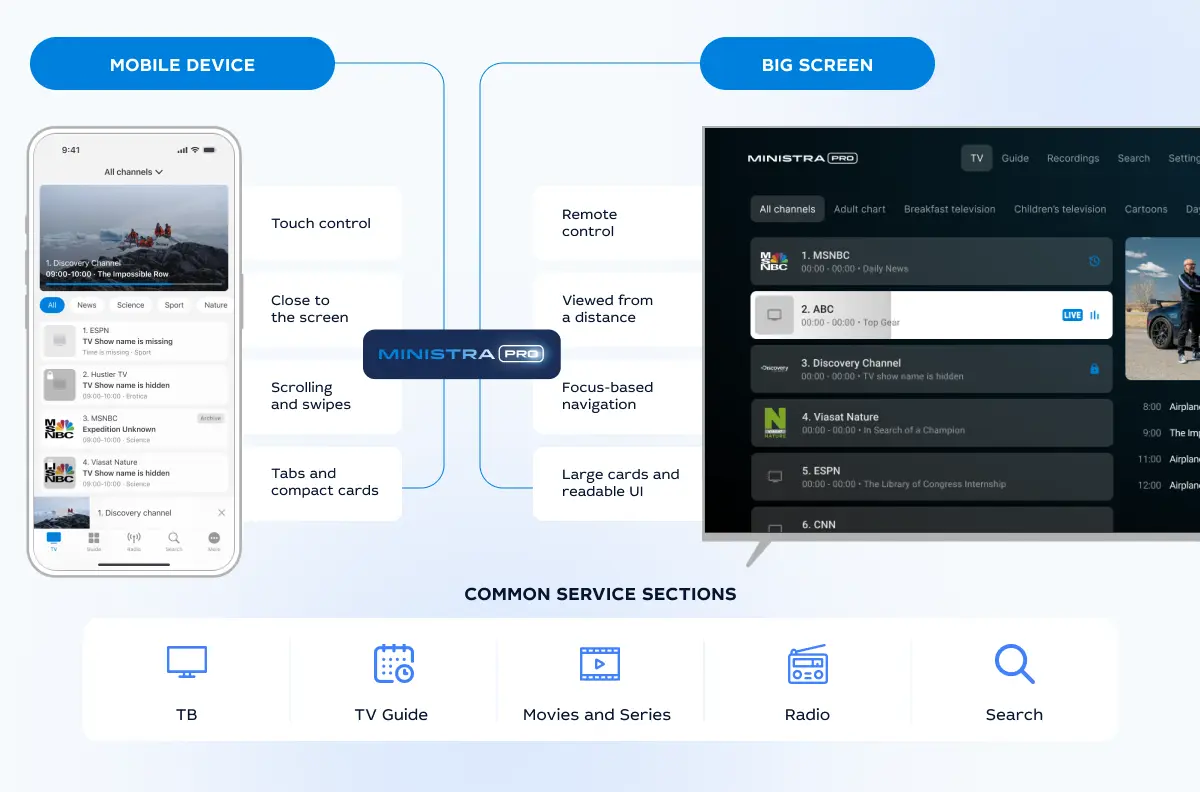
One service — two interaction scenarios
The Home Screen Defines the User’s First Step
The Home Screen is the first point of interaction with the service. Its purpose is not necessarily to show as much content as possible at once. More importantly, it should quickly provide clear directions for where the user can go next.
In Ministra PRO, operators choose which content appears on the Home Screen and organize it into separate sections. These sections can include VoD, TV Channels, DVR, NPVR, and Radio.
Sections help structure content. One section can contain movies, another series, TV channels, radio, or recordings. A single created section can also be reused across multiple screens, helping maintain a consistent application structure.
The composition of the Home Screen can therefore depend on the service model. For a traditional TV operator, television may remain the primary section. In a service with a large VoD library, movies and series may occupy a more prominent position. In another project, the Home Screen may be designed to be much more compact.
On certain Ministra PRO client platforms, operators can also configure which screen users see when the application starts. For example, updates for Android TV and Firestick introduced the option to select Home, the TV channel list, or TV Guide. It’s important to note however that the available options depend on the client platform and application version, so they shouldn’t be considered identical across all devices.
Mobile Interface: A Short Path to Content
On a smartphone, users usually expect to move quickly from the start screen to the type of content they are interested in. A consistent sequence is especially useful here: screen → section → card → detailed information → playback.
The Ministra PRO UI allows operators to create separate Screens for organizing VoD. For instance, with the IPTV UI for mobile devices on iOS and Android, these screens can function as tabs: users switch between them to view different sets of sections, such as movies or documentary content.
Within each screen, information can be organized further using sections. For VoD, these may include movies, series, or themed collections.
This approach is particularly useful for large libraries. Instead of a single long list, the user gets several navigation levels, each helping to narrow down the choice gradually.
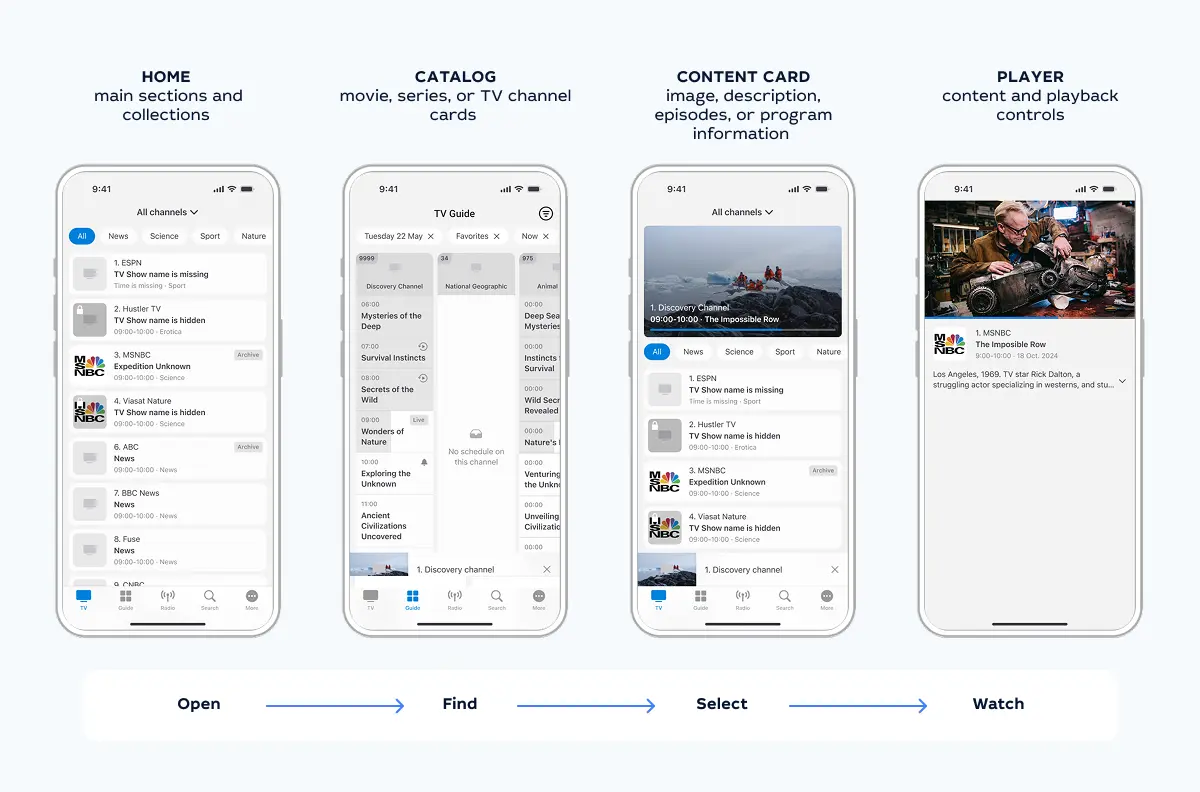
How users navigate from the home screen to watching content
A Big Screen Requires a Different Spatial Organization
A television interface operates in an environment where users can’t directly touch the desired element. Navigation between objects is performed using remote-control buttons, so on a big screen UI, card placement and focus movement become part of the user experience.
Ministra PRO provides dedicated TV Channels templates for large screens. In particular, the Classic template displays a list of channels, the name of the current program on each channel, a preview window for the selected channel, and its EPG.
This allows the user to remain within a single context. While moving between channels, the viewer can simultaneously see what is currently on air, preview the selected stream, and check the program schedule.
For television viewing, this model is often more convenient than several separate pages that require constant switching. The key information remains centered around the current selection.
Classic UI — A Familiar Television Model
“Classic” in this context does not mean outdated. It refers to preserving a familiar television interaction model: a channel list, current program, preview, EPG, and remote-control navigation.
This is especially important for operators migrating an existing service to a new software platform. If the user model changes completely at the same time as the technical migration, subscribers must relearn basic actions.
At the same time, the classic interface continues to evolve. For example, the tvOS version of Ministra PRO updated Classic TV Channels elements in January 2026, including the design of channel cards, the preview area, and the EPG list. Android TV also continued to receive changes in 2026 to TV Guide, archive controls, the player, and navigation.
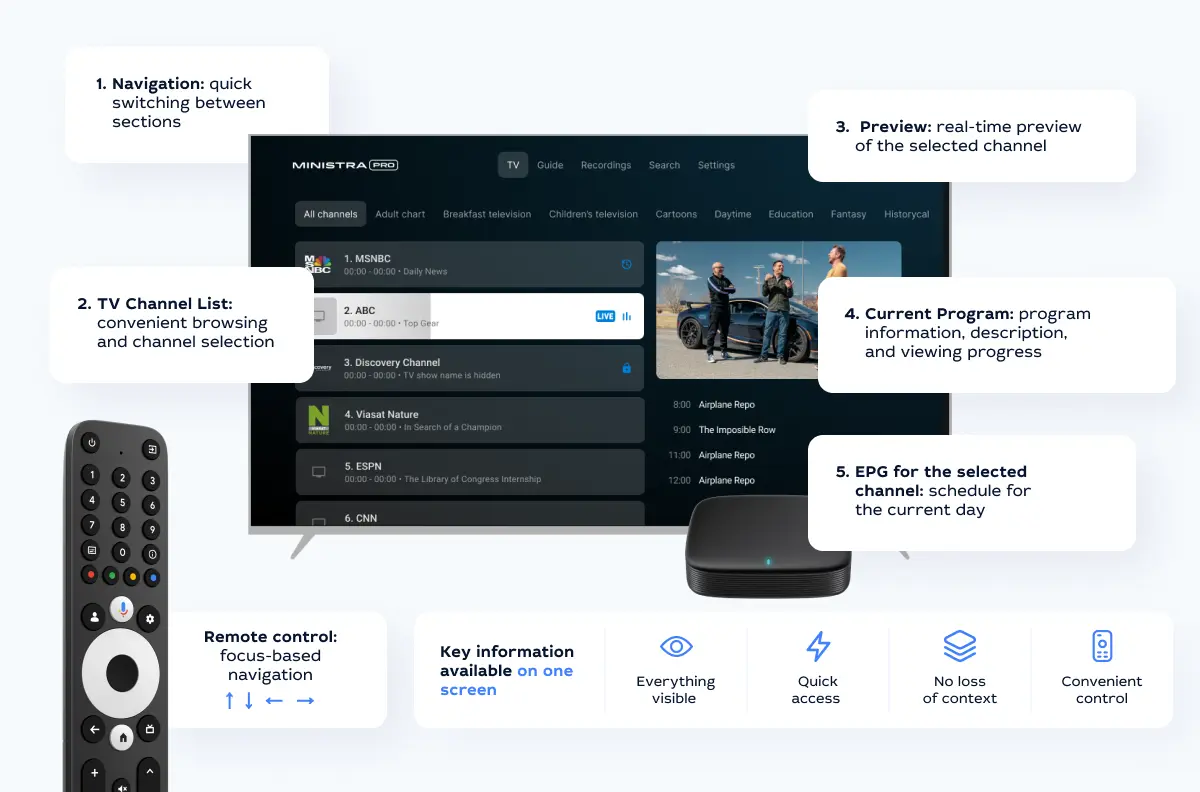
Classic interface for a big screen
EPG Shows the Difference Between Mobile and Big-Screen Interfaces
The electronic program guide is a good example of why the same data set should be presented differently across devices for a smooth multiscreen experience.
With the IPTV UI for Smart TV, the large screen makes it possible to show several channels and time intervals at once. Users can move through the schedule grid with the remote control and compare programs that are currently on air or will start later.
Ministra PRO offers two TV Guide templates. The Standard template includes EPG, a preview window for the current program, and information about it. The Light template includes channel categories and the EPG itself, using a more compact structure. The template is selected during application build configuration.
On a smartphone, available screen space is significantly smaller, so the interface naturally becomes more sequential: the user first selects a channel or program and then accesses additional information.
At the same time, the source of the guide remains the same. Ministra PRO receives EPG data from XMLTV sources through the server side, after which client applications load and display it in TV Guide.
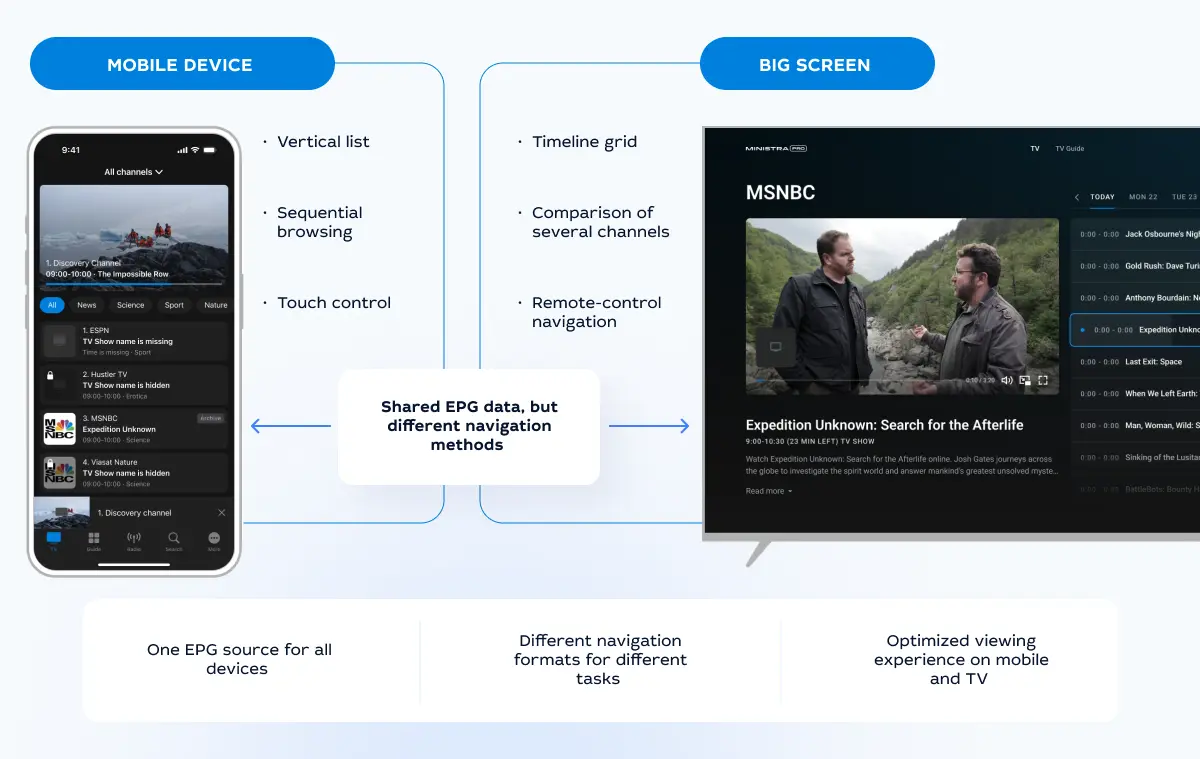
How the TV guide looks on a smartphone and a big screen
VoD: The Library Is Not the Only Thing That Matters — Its Structure Does Too
A large catalog of movies and series does not automatically make a service convenient. If all content is presented in one long list, users still have to spend time searching.
In Ministra PRO, VoD can be organized using Screens and Sections. For example, a separate screen can be dedicated to a particular content type or category, with additional themed sections inside it.
On mobile devices, Screens can appear as tabs. On a big screen IPTV interface, the same organizational principle is implemented with television navigation in mind.
In Android TV, the appearance of screens in the horizontal carousel was redesigned in April 2026, and support for individual background images for each Screen was added. This provides an additional visual layer for separating large catalogs.
As a result, the operator can build not just a catalog, but a hierarchy that matches the content volume and audience behavior.
The Player Should Clearly Explain the Viewing State
After a movie or TV channel is selected, the interface moves into the background. The content becomes the primary object, while playback controls should appear only when the user performs an action.
Even a minimalist player, however, should clearly communicate the viewing state: whether the content is live or recorded, whether seeking is available, whether the user can return to the beginning of the program, and what each control button does.
In Android TV Ministra PRO, an optional EPG button was added directly to the fullscreen player panel in April 2026. The same update introduced TimeShift behavior settings: after watching with a delay, the user can either return to live playback or continue from the delayed position.
A similar TimeShift setting was added to Android mobile in May 2026, and the same version also adjusted the placement of channel information in the fullscreen player.
These changes clearly demonstrate the difference between a shared feature set and the way those features are controlled on different devices.
One Service Can Be Presented Differently on Different Devices
Multiplatform support does not require every user to see exactly the same Home Screen.
Ministra PRO allows operators to create multiple Screens and apply Multi Filters to them. Conditions can take into account device type, operating system, model, country, account group, and other parameters. The section order and display priorities may differ, while both interfaces remain part of the same managed service.
The goal should not be maximum differentiation. Section names, visual cues, and the overall logic should remain recognizable. What should change first and foremost is the layout and interaction method.
One platform — shared service logic
Readability Is Especially Important on a Big Screen
A responsive interface and its usability are not determined just by the number of navigation steps. Users must be able to clearly distinguish section names, the active card, and the current focus state.
For TV interfaces, this is especially important because of the viewing distance. Even an informative page becomes inconvenient if the text is too small or the user cannot tell which object is currently selected.
The development of Ministra PRO client applications regularly addresses these details. For example, tvOS updates included changes to channel card design, the preview area, and EPG, while Android TV updates corrected issues related to focus and the display of TV Guide elements.
For operators, this means that application testing should evaluate the interface at a realistic viewing distance and with a real remote control, not only on a mockup or developer monitor.
Viewing Distribution Across Screens Depends on the Service
Having a mobile application does not mean that the audience distributes viewing equally between smartphones and TVs. Device choice is largely determined by the nature of the content and the habits of users on a particular platform.
This can be seen in Nielsen All Screens Video Landscape data for Poland in August 2025. The study covers viewing across four screen types: TV, PC or laptop, smartphone, and tablet. For individual distributors, the share of viewing specifically on TV screens varied significantly: Google — 25%, Netflix — 83%, Canal+ — 98%, and Warner Bros. Discovery — 99%.
These figures should not be interpreted as a universal viewing distribution between mobile and television devices. They refer to a specific market and specific distributor groups. Their value lies elsewhere: they demonstrate how strongly audience behavior can differ depending on the type of video service.
For an IPTV/OTT operator, the practical conclusion is that mobile and big-screen interfaces should be treated as separate user scenarios rather than as a primary interface and its smaller copy.
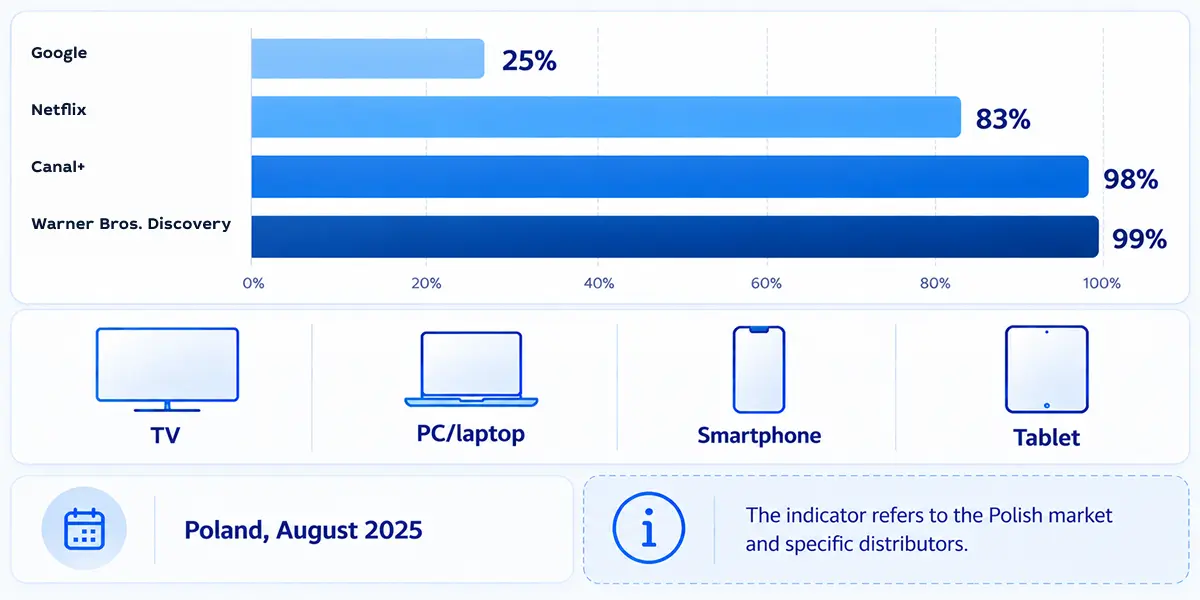
Share of a specific distributor’s viewing that takes place on a TV screen among four measured device types
What Should Be Checked Before Launch
When evaluating a user interface and the overall IPTV user experience, the question “How modern does it look?” should be only one of the criteria. For a real IPTV/OTT service, it’s more important to check the complete user journey.
Operators should assess how quickly users understand the Home Screen structure, how many actions are required to start a TV channel, whether it’s easy to open the TV guide, how easy it is to find a movie, and whether the player controls are understandable without additional explanation.
The television scenario should be tested separately: whether the current focus is visible from a typical viewing distance, whether remote-control navigation is logical, and whether TV Channels and TV Guide provide enough information.
The mobile UI should be evaluated using different criteria: how convenient it is to switch between Screens, scroll through sections, open cards, and return without losing context.
It’s also important to account for the capabilities of specific platforms. Even within the same ecosystem, the available settings and the release timing of individual features may differ. This is why interfaces should be designed and tested for the actual client applications being used, rather than for an abstract “universal screen.”
We hope that this IPTV interface overview has shown that the goal of a multiplatform interface is not to make smartphones or tablets look like TVs, or to move a mobile application onto a big screen without changes. Instead, users should recognize the same service, understand its structure, and access the content they need while interacting with it in a way that feels natural for each device.
Ministra PRO combines a shared content management system with Home Screens, Sections, mobile tabs, TV Channels and TV Guide templates, as well as device-type filtering. This allows operators to maintain a unified service logic without forcing every screen to work in exactly the same way.
Recommended
All Content in One Service: Live TV, VoD, Radio, Archive, TimeShift, and EPG in Ministra PRO
A television service has long been more than just a list of channels. Viewers now want to watch live broadcasts, return to a missed program, pause a show, schedule recordings of individual episodes or an entire series using nPVR, or choose a movie from a catalog. At the same time, all these capabilities should feel like parts of a single media environment rather than separate systems.
Interactive TV Trends on Google TV: What to Know in 2027
When choosing a television platform for 2027, businesses need to assess more than picture quality and the app selection. Equally important considerations are how viewers will find content, what capabilities the operator will have, and how predictably the equipment will perform after updates.
How to Reduce Video Delivery Costs Without Compromising Quality: CDN, Edge Cache, and Multi-CDN
As an IPTV/OTT service’s audience grows, so do both revenue and video delivery costs. For an operator, this means additional terabytes of outbound traffic. For a hotel, it means greater pressure on its internet connection. And in the case of maritime transport, it means the video service has to compete with other applications for limited bandwidth.